How to Create a Portable Windows 11 USB Drive?


Many of you may be thinking how to create a portable windows 11 USB drive but this is quite easy. Losing access to your personal computer no longer means losing access to your digital life. Here the idea is a fully functional, pocket-sized PC and complete external Windows environment you can boot from any device as it is much powerful.
If we talk about the native windows to go feature that once provided this capability has been retired in 2020, but let me tell you it is still possible to create a highly efficient Portable windows to go windows 11 USB drive using modern, readily available tools.
This comprehensive guide will walk you through the exact, streamlined steps necessary to create your own persistent portable workspace. We will move beyond the obsolete methods to give you the most reliable Windows To Go Alternative available today in 2026, ensuring your data and settings are always with you. If the USB fails during the setup or becomes unreadable, you can use SysTools dedicated solution for corrupted pen drive data recovery to restore essential files.
Why Windows To Go Was Retired And the Best Alternatives Today?
Here in the beginning the Windows To Go (W2G) feature was introduced in Windows 8 and available in Enterprise and Education editions of Windows 10 as it was a popular solution for corporate users and administrators because of its features offering a full, bootable Windows installation on a certified USB drive.
In the year 2020, Microsoft officially retired Windows To Go and started with Windows 10, version 2004. The main reasons for its discontinuation included the lack of essential updates for host hardware compatibility, the complexity of managing certified drives, and issues with providing a reliable hardware experience across different PCs.
This retirement means creating a modern external Windows drive is no longer an option available for users. Now you require a powerful, third-party solution to create a working and stable Portable Windows 11 USB Drive.
Requirements for Creating a Portable Windows 11 USB
Before starting the creation process your preparation is key to ensuring a smooth, error-free experience. You must ensure that the following items will guarantee that your new portable workspace runs efficiently and reliably. Creating a bootable USB often requires formatting the drive first. If your data gets erased during this step, you can follow our tips to recover formatted data from pen drive using CMD to restore lost files.
| Component | Minimum Specification |
|---|---|
| USB Flash Drive | 32GB (64GB is recommended) |
| Windows 11 ISO File | Needed latest official version |
| Host PC | Windows 10 or 11 |
| Third-Party Tool | Rufus Latest Version |
Steps to Creating Portable Windows 11 USB Drive Using Rufus
The most reliable alternative is known as Rufus Windows To Go Alternative tool for this process. By following simple 7 steps you will build your Portable Windows 11 USB Drive.
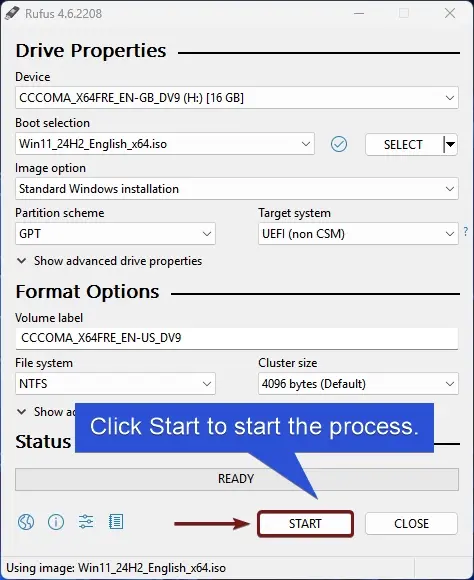
- Preparation and Launch: Start with downloading and run the latest version of Rufus. Plugging your high-speed USB drive into the host computer and selecting your target drive under device in the Rufus interface.
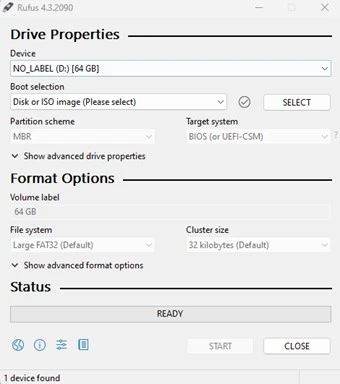
- Select the ISO: By clicking SELECT and choose your downloaded Windows 11 ISO file.

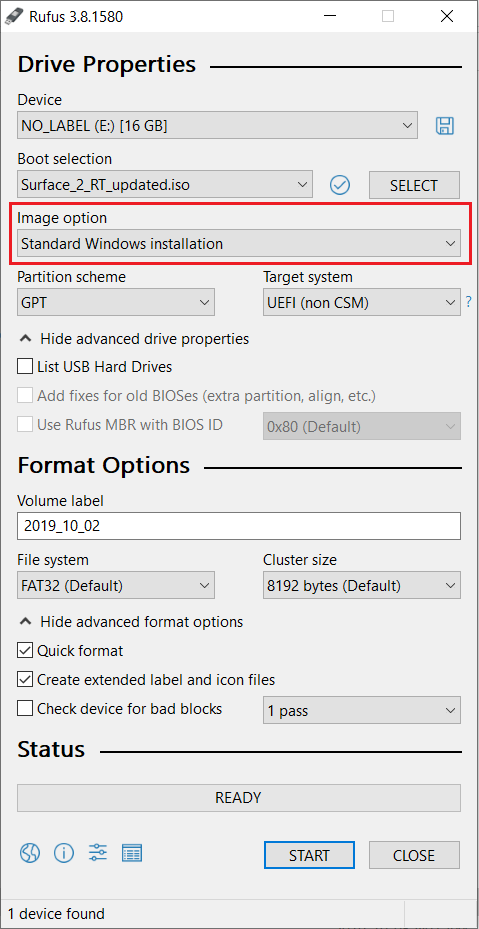
- Setting for the image option: The most important step after selecting the ISO, a dropdown menu labeled Image Option will appear. Change this setting from “Standard Windows installation” to “Windows To Go”.
- Partition Scheme: Select the appropriate scheme for the computers you intend to use GPT for most modern PCs ( Must for UEFI boot mode) and MBR for older PCs with traditional BIOS.
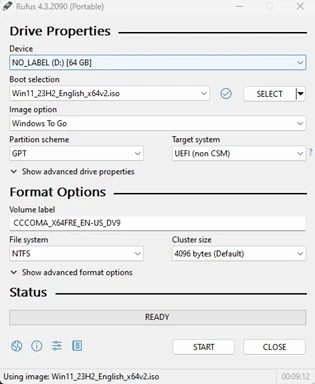
- Target System: Ensure the Target System option is set to UEFI (non CSM) if you choose GPT.
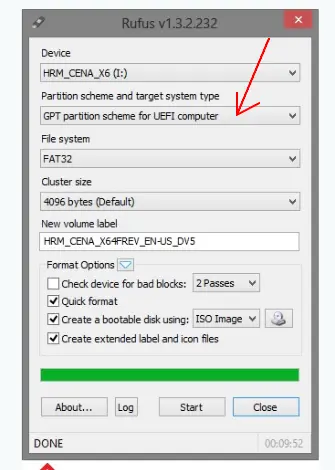
- Finalizing and Creation: Now just click START and Rufus will warn you that all data on the drive will be destroyed. You just need to confirm, and the utility will begin the process of writing the Windows 11 image to the drive. This is a bit time taking process up to 20 to 40 minutes depending on your USB speed.
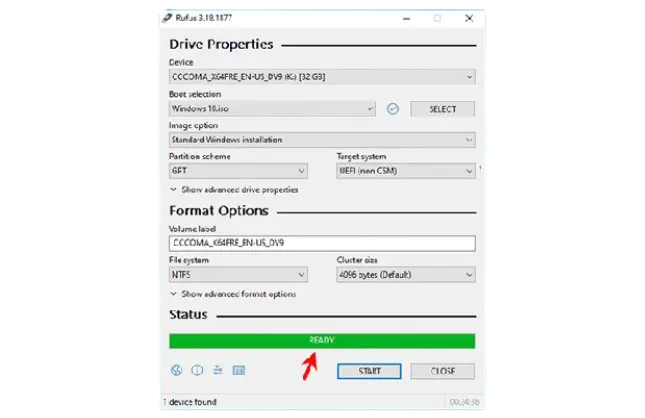
- Verification: Once it is confirmed by the Rufus DONE, it safely ejects the drive. Your Portable Windows 11 USB Drive is ready to boot.
Maximizing Performance and Longevity of Portable Workspace
We find a common complaint is slow performance when using an external Windows. To avoid this you can use some of the proven methods to ensure your portable workspace runs as smoothly as possible, while also extending the drive lifespan.
The Performance Test: Always Use USB 3.0
A USB 2.0 port will bog down your system, no matter how fast your flash drive is. Always plug your portable Windows 11 USB drive into a blue (or sometimes red/yellow) USB 3.0 port or better. The difference in speed will significantly improve application loading and system responsiveness.
Reduce Write Operations (The Longevity Fix)
As the flash memory has a finite number of write cycles and Windows loves to write data constantly. To extend the lifespan of drive:
- Disable Indexing: Disabling the indexing for the USB drive prevents constant background writing.
- Disable Hibernation/Paging: If your host machine has enough RAM just disable the hibernation file and move the Windows paging file to the host PC’s internal drive as it prevents massive write operations.
Optimize Windows 11 Settings
Once you boot up your Portable Windows 11 USB Drive you just need to disable non-essential visual effects, turn off background apps, and ensure all unnecessary startup programs are disabled to conserve resources and improve speed.
Common Errors and Troubleshooting When Booting from an External Windows Drive
If you’ve followed the steps correctly and still have problems, you’re likely having a BIOS/UEFI issue, not a software problem. Fixing these troubleshooting points will often resolve the problem.
Drive Not Found” or Boot Loop Error: The host computer’s BIOS/UEFI doesn’t know to look at the USB drive first. Find below the solution what you can do to troubleshoot this issue:
- Solution: Immediately after turning on the host PC, press the appropriate button (usually F2, F10, F12, or Delete) to enter the BIOS menu. Find the boot order settings and manually select the USB drive to boot first.
License or Activation Issues
The portability feature means not transferring your permanent license.
- Solution: In this scenario you need a valid Windows 11 license associated with your account and volume license key to activate the Portable Windows 11 USB Drive installation legally.
Windows 10/11 is Extremely Slow
If the slowness is intolerable, you may have used an older or uncertified USB drive.
- Solution: The only solution is to revisit the prerequisites. You need to check your drive’s manufacturer specifications to ensure it is rated for high sequential read/write speeds or not; this is essential for a stable Portable Windows 11 USB Drive.
Security & Data Management for Portable Workspace
As the external Windows drive contains your entire digital life, security and reliable data management are paramount.
- Encryption is Essential: Use a USB drive like a laptop. If it’s lost, your data could be at risk. Use BitLocker Drive Encryption (built into Windows Pro/Enterprise) to password-lock the drive, so it’s safe even if the physical drive falls into the wrong hands. Also, avoid plugging encrypted drives into unsafe public USB ports as it exposes hidden risks. For more details, check our guide on Juice Jacking Prevention.
- Keep Secure Backup: Ensure you use robust data management & backup tools (either built-in Windows backup or dedicated software) to regularly mirror the drive’s contents as this is your primary portable workspace. When the drive fails, your data will be safe.
Conclusion
The convenience of having a fully functional and personalized operating system in your pocket is invaluable where the native Windows To Go feature is now an outdated tool but if you are looking for modern solutions like Rufus, well it offers a robust and easy-to-use Windows To Go alternative. In a large enterprise, where it is required to give PowerPoint presentations frequently, the environment greatly matters with Hyper-V and all on a miniature USB thumb drive.
By following these steps and meeting the requirements, you’ve successfully created your portable Windows 11 USB drive. Try your new external Windows system today and enjoy the flexibility of your portable digital life.
